Create professional results across tools with Claude Sonnet 4.5
Use Claude Sonnet 4.5's code execution and file creation to build professional presentations, spreadsheets, and documents efficiently.
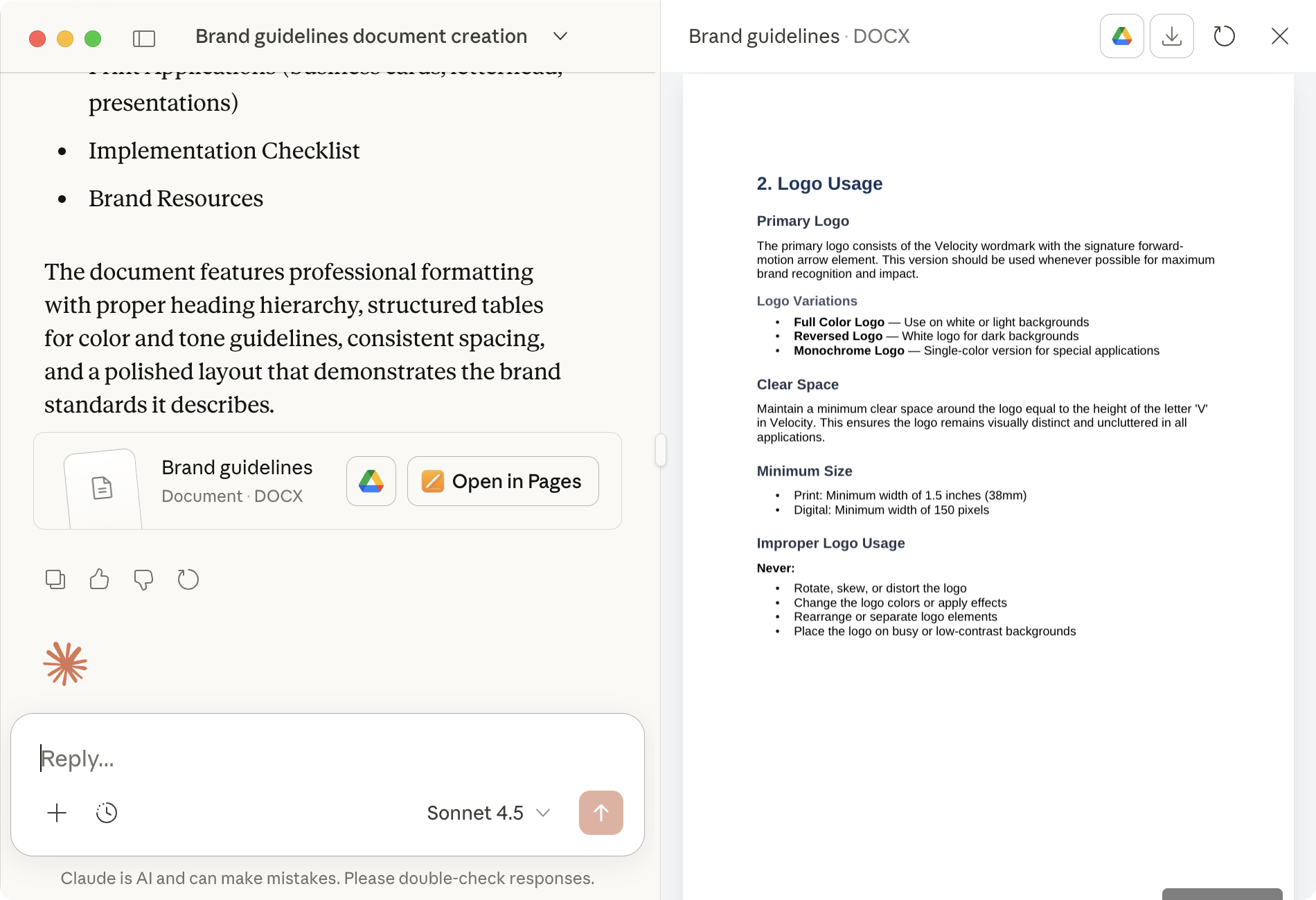
Claude Sonnet 4.5 is our most intelligent model for creating work deliverables. With code execution and file creation, Claude can build presentations, spreadsheets, and documents faster and with higher quality than before (currently limited to Max and Pro accounts).
If you're new to code execution and file creation on Claude, start with our introduction guide. This guide will help you get professional results by showing you what works well, how to refine outputs, and how to work effectively with Claude's capabilities.
When you ask Claude to create a file, it automatically writes and runs the code to build it. This capability, called code execution, enables Claude to create professional presentations, spreadsheets, and documents that you can edit and use in your workspace.
Code execution handles the computational work—analyzing and transforming data, processing images, editing existing files—and generates structured file outputs like presentations with your content and data, spreadsheets with working formulas, custom visualizations, PDFs, LaTeX, and more.
Sometimes the code itself is the deliverable, like when you ask for data analysis or image processing. Other times, Claude packages those insights into a finished file you can download and use. Code execution powers both. It's what makes a strong coding model like Sonnet 4.5 valuable for anyone who creates work deliverables, not just developers.
If you're using a Team or Enterprise plan, see Configuring network access for additional information about code execution and file creation security.
Sonnet 4.5 is Claude's most intelligent model for file creation, meaning you’ll get file outputs that consistently meet professional standards, with clearer handling of your instructions and fewer iteration cycles needed.
You'll notice both speed and quality improvements across all file types. Spreadsheets have more reliable formulas in complex calculations, better multi-sheet references, and accurate formula logic. Presentations show improved layouts with properly fitted text, spacing between elements, and clear visual focus. Documents maintain consistent formatting, layout, and alignment when you refine them.
Claude's file creation capabilities work best when you provide clear direction and context. These techniques will help you get professional, usable results efficiently.
Turn on the Extended Thinking feature before creating files. This helps Claude reason through complex layouts, formulas, and multi-step tasks.
It's particularly helpful for:
Provide specific details to give Claude clear direction. Include exact measurements, design principles, and technical requirements when you have them. Ask Claude to verify its work against your requirements to catch issues before the first output.
Presentations:
Spreadsheets:
Documents:
When working with multiple files, describe their relationship and what role each plays. For instance, you might upload brand guidelines to provide exact colors and fonts, a previous quarter's presentation to match the layout structure, and new data to source all metrics.
An effective way to communicate your specific requirements is to upload existing files as examples. Templates help Claude understand your exact standards for structure, style, and formatting. When you upload a template, include clear instructions on what Claude should reference from it, whether that's design elements, formulas, or formatting patterns.
What to upload:
Chat previews don't always show the full picture. Download the file and open it in the appropriate application to verify everything looks right; formulas calculate correctly, elements don't overlap, formatting is consistent. Once you've reviewed it, you can ask Claude for specific changes or handle small visual tweaks yourself in the app.