How to create a skill with Claude through conversation
Learn how to create Claude Skills through natural conversation by describing workflows and having Claude structure them into reusable formats.
With Skills, you are able to teach Claude specific workflows, tools, and processes. By creating a skill, you're giving Claude a playbook it can reference whenever you need a particular type of help—whether that's generating reports in your company's format, cleaning and using data the way you normally do, or pulling and analyzing CRM data your way.
There are two paths for creating skills. You can create skills by writing the files yourself for full control over structure and implementation. See How to create custom skills and Skills authoring best practices for that approach.
This guide focuses on the other path: creating skills through conversation with Claude. You describe your process naturally, and Claude handles the formatting and structure. This approach makes Skills accessible to anyone, regardless of technical background.
New to skills? See What are Skills and Skills user guide to get started learning about Skills.
Creating a skill with Claude means having a conversation where you explain your approach and share any materials you want included. Claude translates this into a properly formatted skill that can work in future chats.
Open a new chat and say something like "I want to create a skill for quarterly business reviews" or "I need a skill that knows how to analyze customer feedback."
If you have materials that show your approach—templates you use, examples of work you're proud of, brand guidelines you follow, data files you reference—upload them. You can also mention any connected tools Claude should use. If you are unsure of what else to include, ask Claude for guidance.
Claude will ask about your process. Provide enough detail that someone capable but unfamiliar could follow your approach.
You'll get questions about concrete usage ("Can you give examples of when you'd use this skill?") or about your process ("What makes output good for this type of work?").
In Claude's thinking, you will see it read a skill-creator skill to follow best practices in creating a properly structured skill. Claude will create a SKILL.md file (the instruction file every skill needs), organize any materials you've provided, and generate code for operations you've described that need to happen consistently. Claude then packages everything into a skill file.
Save the the skill file that Claude creates. In Settings > Capabilities > Skills, you can view your library of skills and turn them on or off as needed.
Try using your skill by describing a task the skill should address. See if Claude recognizes the situation (you'll see "Using [skill name]" in Claude's thinking) and whether it produces the expected outcome. If something's off, ask Claude to update the skill with your desired changes. Repeat this process until your skill works effectively.
You can build skills for a range of tasks. Skills can capture how your organization works, enable specialized expertise you don't personally have, or work together to handle complex workflows.
Skills bundle three types of content together—instructions, reference materials, and scripts. Knowing these components helps you articulate what you need when creating a skill with Claude.
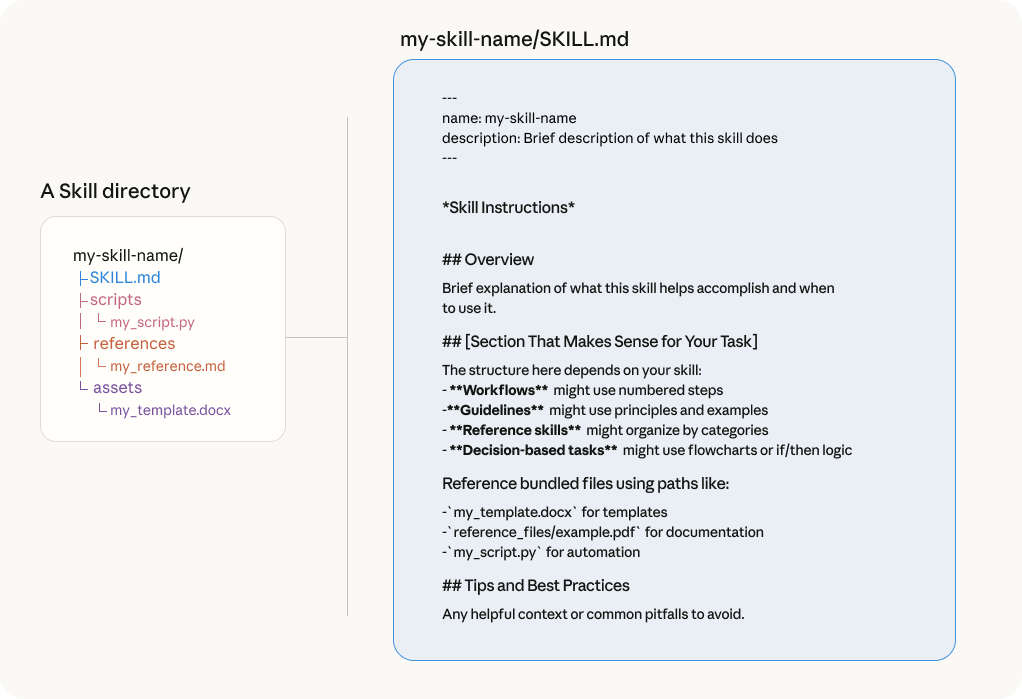
Every skill needs a SKILL.md file that explains your process. When asking Claude to create a skill, describe your process for Claude to structure it into proper instructions. At the top of your SKILL.md file, will be the skill's name and what it does. Claude scans this information first to decide whether or not to load and use the full skill during your conversations. Below that are clear instructions on how to do the task.
Sometimes instructions alone aren't enough and Claude needs actual files to reference or use in the output. To include these, upload any relevant files or information when creating your Skill. Claude determines whether to embed guidance in the SKILL.md instructions or bundle it as a reference file.
These are executable code files that Claude can run to handle complex operations more reliably than instructions alone. You don't need to write these yourself. When you describe tasks that need scripts, Claude recognizes them and creates the code automatically. Examples include: