Simplify your browsing experience with Claude in Chrome
Learn how Claude in Chrome enables Claude to work alongside you in your browser with visual intelligence and contextual understanding.
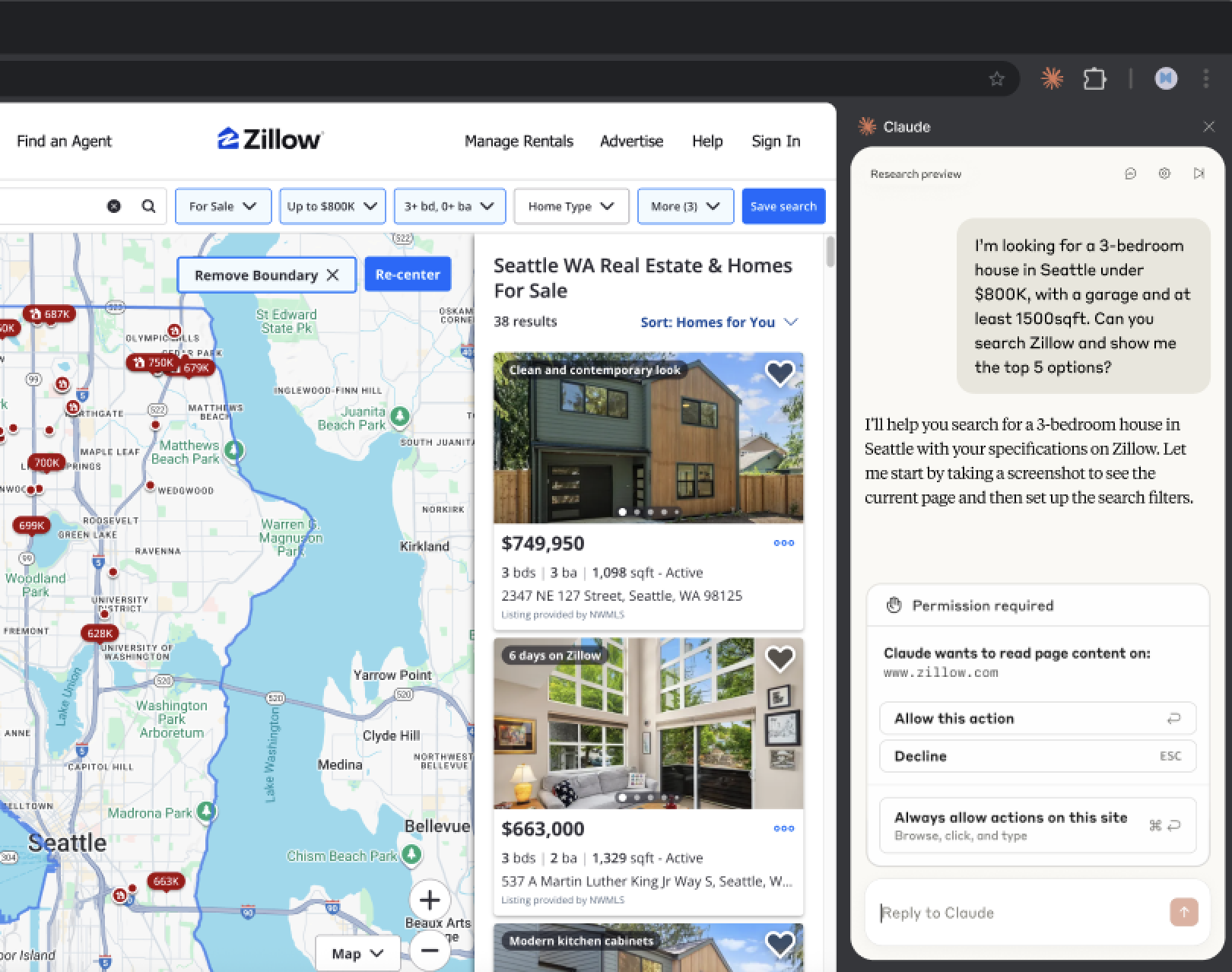
Claude can now work alongside you in your browser, in your context, on your actual work. Claude can see what you see, click on what needs clicking, and act as your collaborator, sharing the cognitive load of digital work. This guide will help you delegate the right tasks, build effective workflows, and maximize Claude's browser capabilities.
Claude in Chrome is available for paid plan users on the Chrome web browser.
Important: Browser use is a feature that allows Claude to interact directly with websites on your behalf, which carries inherent risks. Please review Using Claude for Chrome Safely before use.
The Chrome extension brings Claude directly into your web workflow. Claude operates in your browser with your permissions, your logins, and your context to take action in the sites you use every day.
Note: Claude maintains context within a single task but doesn't remember information across sessions.
Not every browser activity suits delegation to the Claude browser extension. Here are a few examples to help you understand which tool to use to work more effectively:
Once you create a successful workflow or find yourself repeating the same request to Claude, there are a few ways to save it as a shortcut for Claude to follow next time. From then on, type / to select your shortcut and trigger the workflow instantly.
Teach Claude your task by demonstration. Click the cursor icon in the menu bar or type / in the chat bar and select ‘Record workflow’. Perform the task, clicking, typing, and narrating, while Claude watches your screen and listens to your voice. When you finish, Claude generates a shortcut: a name, a prompt describing what you did, and the starting URL.
If you’ve completed a workflow across several chats, click Convert to task in the conversation header to save it as a repeatable shortcut.
If you've already sent a well-crafted prompt in chat, hover over it to reveal an icon that lets you save it directly as a shortcut.
Once a workflow runs reliably — whether from a recording or a saved shortcut — schedule it to run automatically. When creating or editing a shortcut, toggle on Schedule. Choose the frequency, set the date and time, and select which model to use. Claude runs the workflow at the specified time and notifies you when it's done or needs input.
Good candidates for scheduling:
Additional shortcuts to try:
Taking action:
/vendor-application: Fill out this vendor application using information from our company info document. Pause before submitting for my review/inbox-cleanup: Go through my mail inbox: archive emails from these senders [list], star anything mentioning deadlines, delete obvious spam. Tell me what you archived and what needs my attention.Research tasks:
/competitor-scan: Visit [competitor website]. Check: latest blog posts, pricing page updates, careers section for new roles. Note anything new or changed. Summarize in a brief./restaurant-finder:Search [food delivery site] for [cuisine type] restaurants. Filter by rating above 4 stars, check menus for [dietary preference]. Show me top 3 options with prices.Communication prep:
/email-batch-draft: For unread emails tagged "needs response": draft replies maintaining my usual tone. Don't send, just stage them for my review. Note which ones need more context from me./stakeholder-map: For each person in this meeting invite: look up their professional background, note their role, identify their likely priorities, find any recent posts/articles. Create a pre-meeting brief.As Claude in your browser has limitations that are helpful to understand.
Permission confirmations
Visit our help center to learn more about which actions Claude will always ask permission for, regardless of your settings.
Reduced functionality
Claude in Chrome is "pure Claude" without extended features of claude.ai, such as Projects, MCP tool connections, or memory between sessions.
Blocked sites
For safety, Claude cannot access financial services, adult content, or pirated content sites.
Claude in your browser represents an early step in our work on AI that can handle increasingly complex workflows and work seamlessly where you do. Try our interactive demo to build confidence before working with real tasks.